Using Area Assist in OptosAdvance for Image Annotation
Area Assist, referred to as Auto‑Grow Region in OptosAdvance, is an annotation tool designed to simplify area measurement during optomap image review. This feature allows users to select and measure a region without manually tracing the full area, making it easier to define areas of interest within an image.
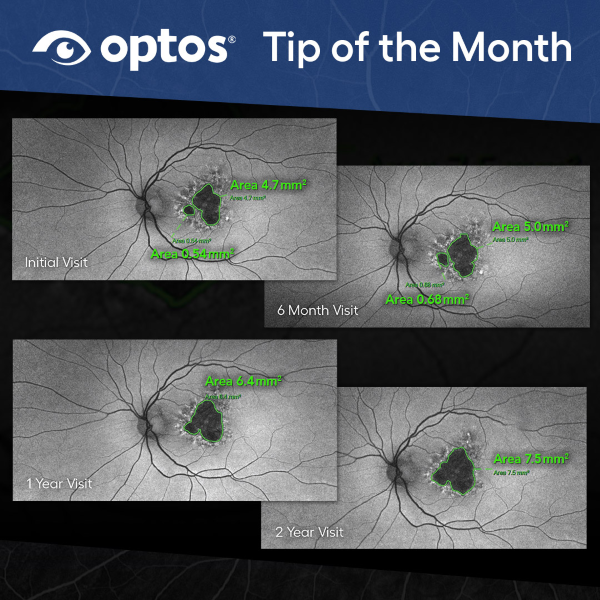
Area Assist is available within the Annotations tools and can be accessed directly from the toolbar. As part of the standard annotation workflow, it supports efficient measurement during routine image review.
Accessing Area Assist
To use Area Assist, select the Auto‑Grow Region tool from the Annotations menu or directly from the Toolbar. Once selected, place the cursor over the area you want to measure. By holding down the left mouse button and slowly dragging the mouse, the selected region expands automatically to include areas of similar characteristics.
The tool then calculates and displays the area measurement beside the selected region.
How Area Assist Works
Area Assist reduces the need for manual outline by automatically expanding the selected region. Instead of tracing the full boundary, users can define the region with a simple click‑and‑drag motion.
This simplifies the annotation process and allows measurements to be captured more efficiently during image review.
Using Area Assist in the Annotation Workflow
Area Assist is one of several tools available within the OptosAdvance Annotations feature. It can be used alongside other measurement tools, such as ruler and ROI free draw region tools, depending on the needs of the image review.
By incorporating Area Assist into the annotation workflow, users can select and measure regions directly within the optomap image without additional steps.
Why Use Area Assist
Area Assist supports efficient image annotation by reducing the need for manual tracing. The ability to select and measure areas quickly makes it a practical tool during routine image review.
Learn More
For complete step‑by‑step instructions and additional guidance, refer to the OptosAdvance Image Review Instructions.