Viewing Retinal Layers in OptosAdvance: Tools and Best Practices
How to View Retinal Layers in OptosAdvance™
Viewing retinal layers is an important part of image review, allowing practices to examine different structures within the optomap® image. OptosAdvance provides several tools that make it easy to blend through the retinal layers, adjust image clarity, and switch between specific optomap views. This month’s Tip of the Month highlights the features within OptosAdvance that support effective retinal layer visualization and help you get the most out of your image review workflow.
OptosAdvance offers multiple ways to examine the sensory retina, and choroid by using Blend, optomap views, and enhancement tools. These functions allow you to explore different structures while maintaining a consistent and efficient review experience.
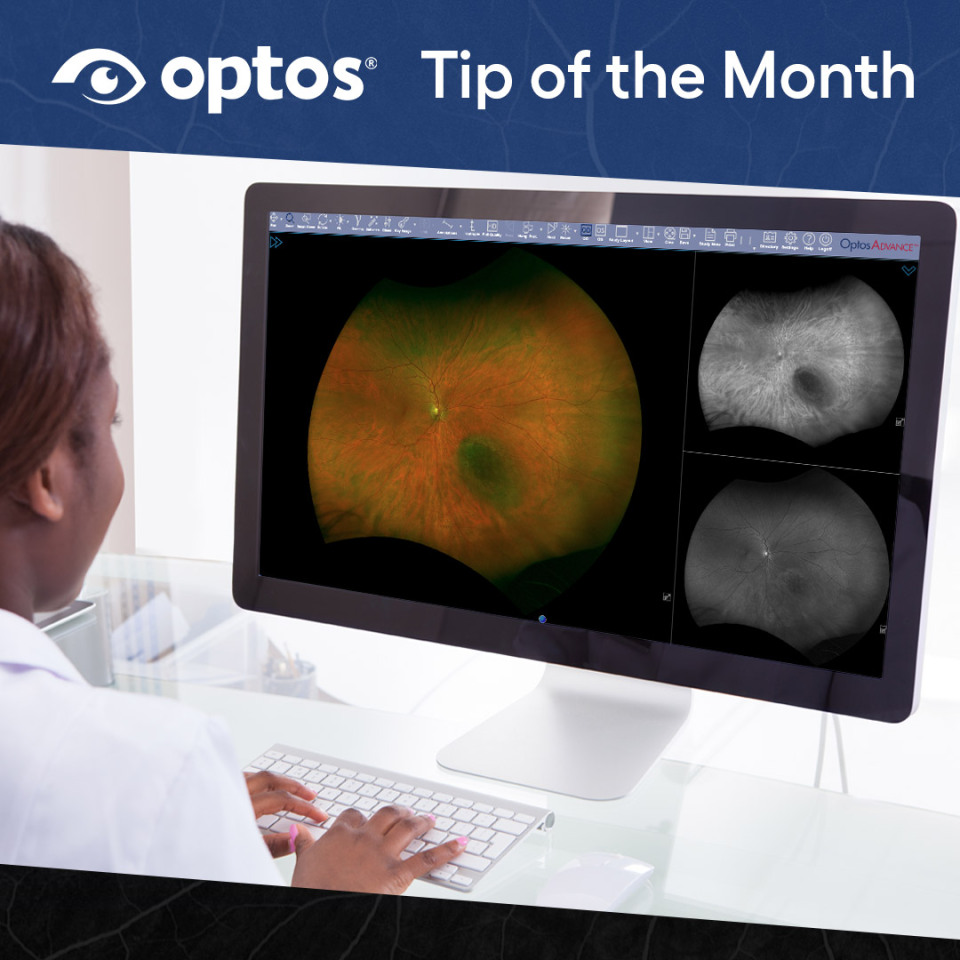
Using Blend to Transition Through Layers
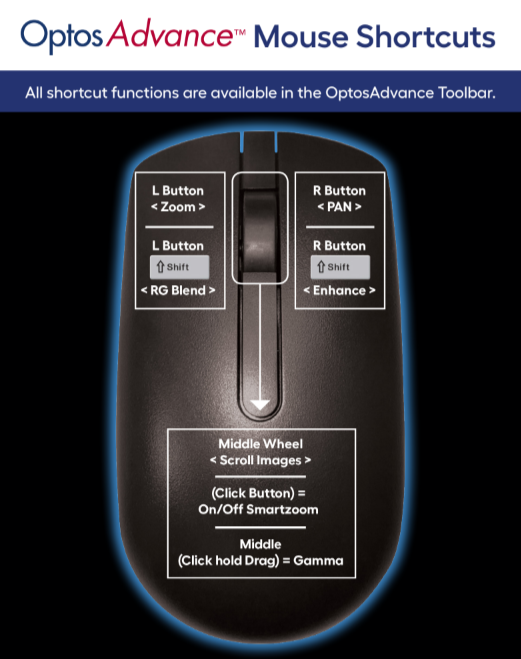
The Blend function allows you to move between the red and green laser channels to explore different retinal layers. To use Blend, hold the left mouse button while pressing the Shift key and move your mouse toward or away from you to adjust the laser blend percentage. This provides a smooth transition between views so you can observe changes across layers at your own pace.
Using optomap Views for Targeted Layer Review
The View menu provides individual optomap options:
- Red Channel for choroidal detail
- Green Channel for sensory retina
- Three Split to show color, red, and green channels simultaneously
These views provide a structured way to evaluate areas of interest and support clinical diagnosis differentiation for your patients.
Applying Enhancement Tools
Image enhancement tools in OptosAdvance allow you to adjust clarity during layer review. Holding the right mouse button while pressing Shift increases enhancement up to a maximum of 3.0. Additional adjustments such as gamma to brighten, are available from the toolbar or other mouse functions, giving you flexibility when reviewing images.
Why These Tools Matter
Together, these options support a thorough, efficient review of retinal layers. They help users explore specific structural details, compare views, and maintain an organized workflow during patient study review.
For step by step instructions and screenshots, visit the Support Portal.