How to Preview Images without Opening a Patient Study in OptosAdvance
Image Preview does not come automatically enabled on your system. Please follow the instructions below to activate and use the feature.
To enable Image Preview:
- Log in to OptosAdvance with administrative privileges.
- Select the Settings (gear) icon.
- Search for Patient Search Study Table.
- Open the setting.
- Ensure Show series preview on single click is selected.
- Leave Load Study Mode set to Double click on study row.
- Save your changes.
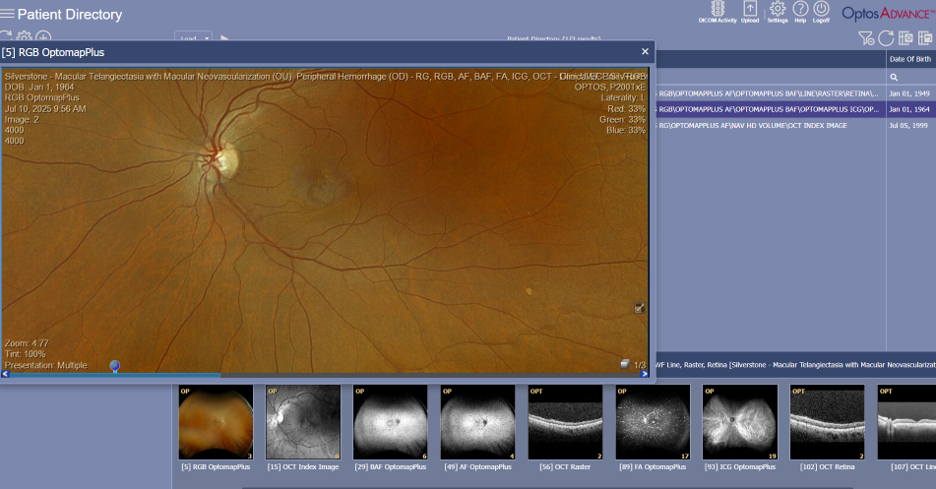
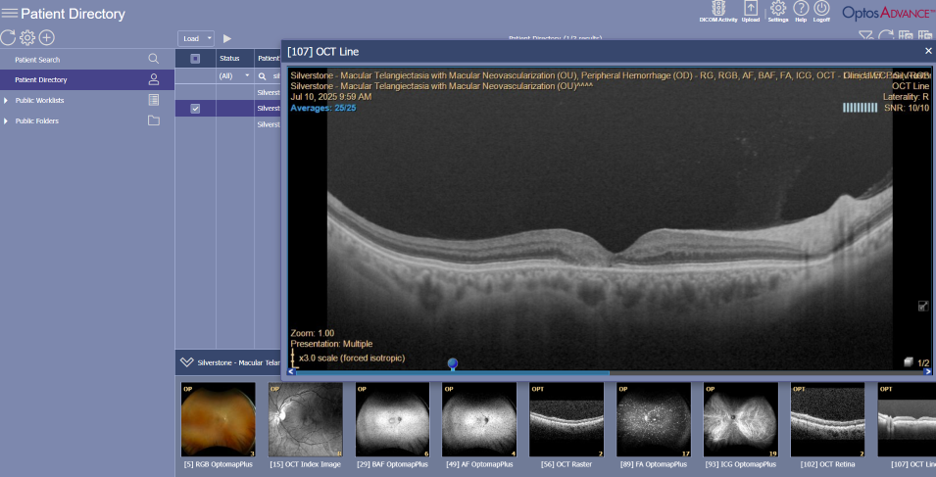
Download the instructions on how to use the Image Preview in Patient Directory for OptosAdvance software version v24 and beyond.
Additional Help
If you are looking for further support or have additional inquiries, we encourage you to visit our Contact Us page. Our dedicated support team is readily available to assist you with any questions or concerns you may have.