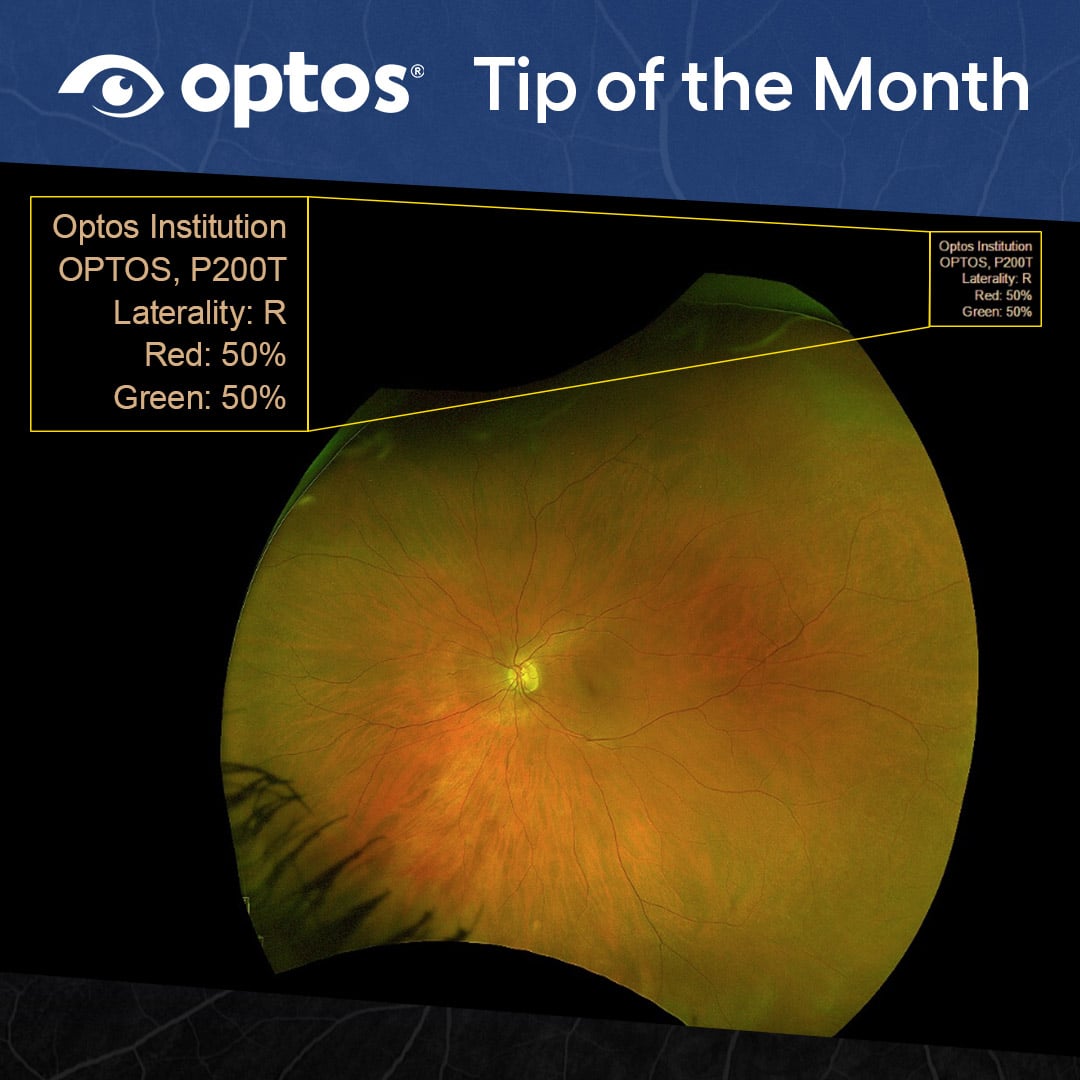
Changing the Laterality of the Image in OptosAdvance
Correcting Image Laterality in OptosAdvance
Incorrect image labeling can occur during image capture. OptosAdvance includes the ability to update image laterality when an image has been labeled incorrectly, helping users maintain accurate image information during review. Users must have the appropriate privileges assigned within their OptosAdvance account to edit patient studies.
When to Change Image Laterality
If an image has been assigned the wrong laterality during capture, the laterality can be updated directly within the patient study. The process is completed from the image review screen using the Edit Image Header function.
Accessing the Laterality Edit Function
Begin by logging into OptosAdvance and opening the desired patient study. Select the incorrectly labeled image. Once selected, a blue box will appear around the viewport, indicating the image is active. From there, right-click the image and select Edit Image Header.
Updating the Image Laterality
After opening the Edit Image Header menu, choose the correct laterality from the available drop-down options and select OK to confirm the change. A warning dialog box will then appear. Select Continue to retain the updated laterality information.
Important Considerations
While image laterality can be corrected within OptosAdvance, please note that optomap images will remain misshapen within OptosAdvance if the incorrect laterality was selected during device capture. This is an important consideration when reviewing corrected images.
Learn More
For complete instructions and additional guidance, refer to the OptosAdvance Changing Laterality of an Image document.
For more frequently asked questions and general topics visit the Optos support portal for easy-to-find answers and guidance for best practices.