Changing the Laterality of the Image in OptosAdvance
Most newer Optos devices include built in laterality safeguards to ensure that each image is correctly labeled as right or left eye before it transfers into OptosAdvance. However, if you notice that an optomap appears distorted or assigned to the wrong laterality, you can easily correct the label within the software. This quick adjustment helps restore proper image orientation.
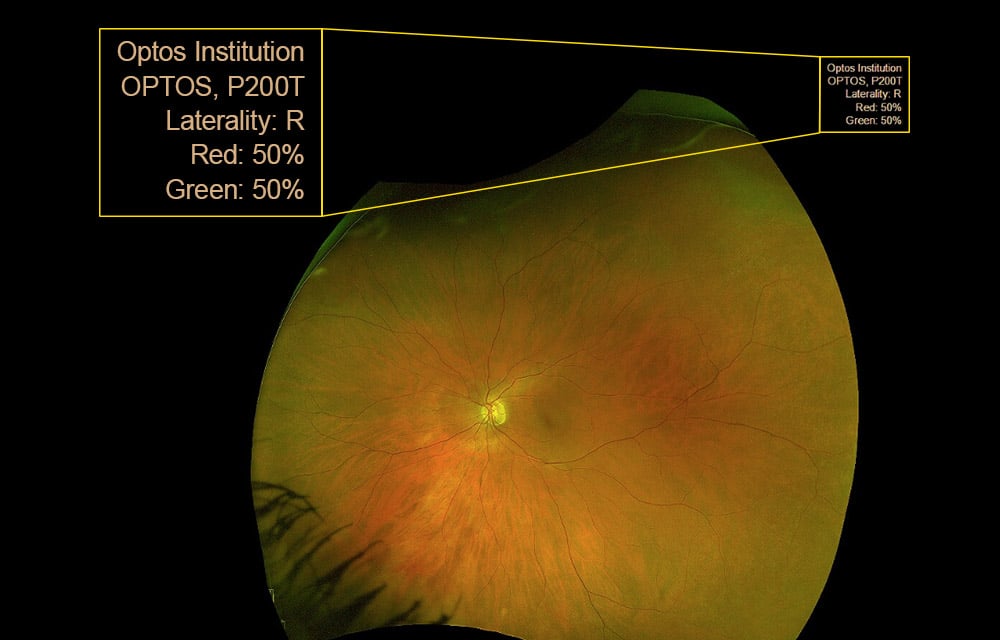
Changing Laterality
You must have the correct privileges set in OptosAdvance user account to edit patient studies.
- Login to OptosAdvance.
- Open the desired Patient Study.
- Select the incorrectly labeled image; a blue box will appear around the viewport.
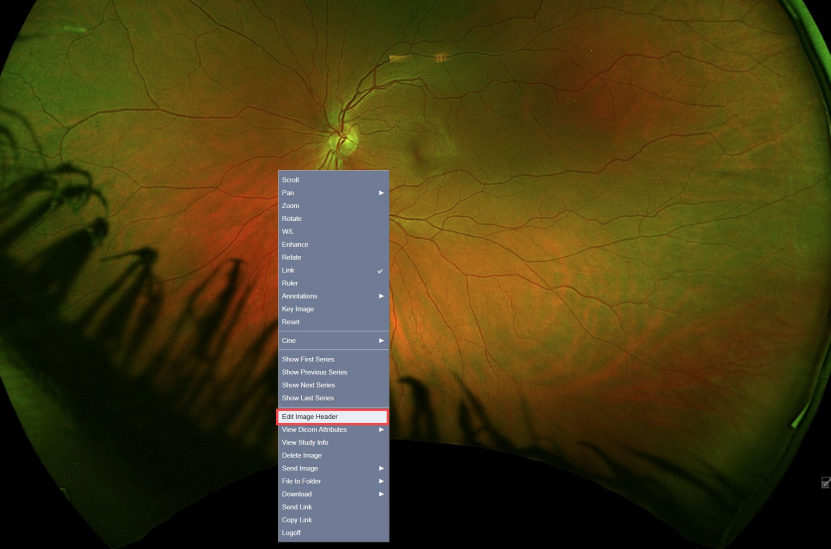
- Right-click your mouse and select Edit Image Header.
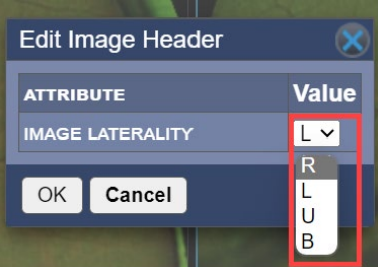
- Choose the correct laterality from the drop-down menu and select OK to confirm the change.
- A warning dialog box will appear, select Continue to retain your changes.
NOTE: optomap images will remain misshapen in OptosAdvance due to the incorrect laterality chosen during device capture.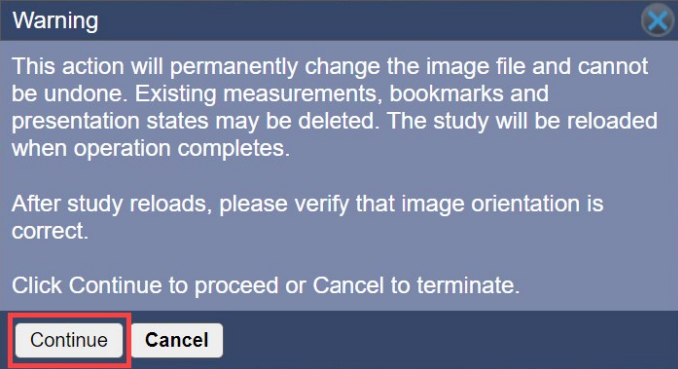
Download the instructions on how to change the laterality of an image if it was labled incorrectly during capture.
Additional Help
If you are looking for further support or have additional inquiries, we encourage you to visit our Contact Us page. Our dedicated support team is readily available to assist you with any questions or concerns you may have.